Quick Start Guide
Using MeshLens is completely automatic.
Step-by-Step Inspection#
Select Any Mesh Actor
Click on any Static Mesh, Skeletal Mesh, or Foliage actor in the active Level Viewport.
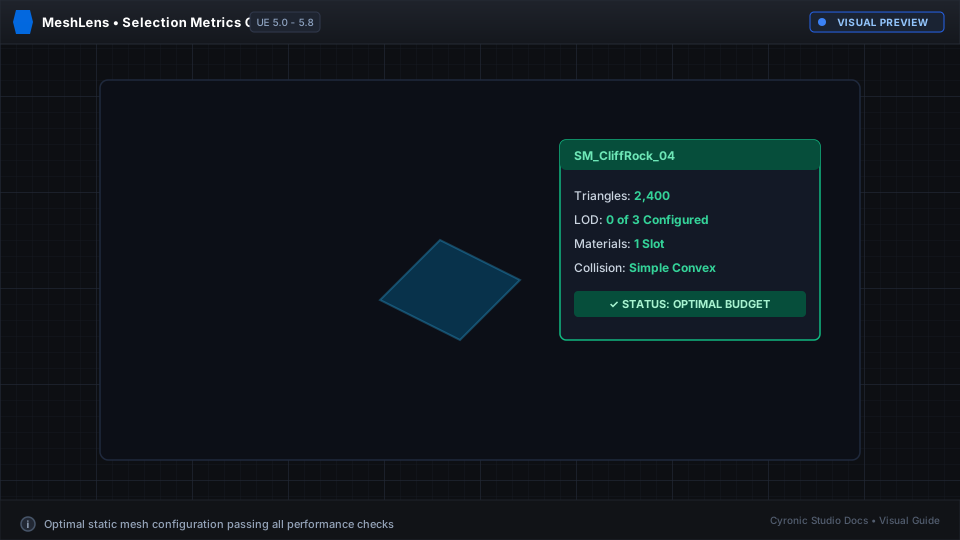
Read the Overlay Panel
Look at the top-right of your viewport. MeshLens displays:
- Actor Name and Asset Path
- Active Triangles and Vertices
- Active LOD Index (e.g.
LOD 0 / 4) - Material Slots & Draw Calls
Test Camera Distance
Move the editor camera backwards away from the mesh. Watch the LOD indicator change in real time as Unreal's LOD transition triggers!
Click to expand
Toggle Hotkey:
You can toggle the overlay visibility on or off at any time using the customizable hotkey (default: Ctrl + Shift + M) or via the Viewport dropdown menu.