Quick Start Guide
Exporting a Blueprint to C++ takes just a few clicks.
Step-by-Step Walkthrough#
Select a Blueprint
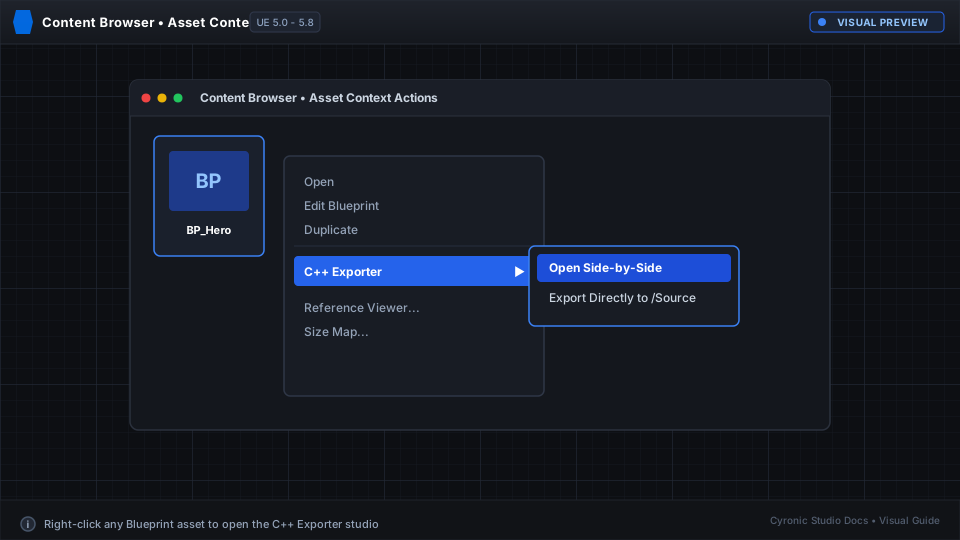
In your Content Browser, locate any Blueprint asset (such as an Actor, Character, or Widget). You can either open the Blueprint, or simply right-click it directly in the Content Browser.
Open the Exporter
From the toolbar or right-click menu, click C++ Exporter > Open Side-by-Side (.h & .cpp).
Review the Generated Code
The code viewer window will open, presenting the generated class header on the left and the implementation code on the right.
Copy or Export to Disk
Click Copy Active to grab code for your clipboard, or click Export to Source... to save the files directly into your project's C++ source directory.
If you make changes to your Blueprint graph while the code viewer is open, simply click the Refresh button on the viewer toolbar to instantly re-generate the C++ code without closing the window.